🐾 Step by step
How to use YunaKuma
Seven small steps. Most kids can do it on their own. Read with a grown-up the first time if you like.
🐻
1
Make your bear
- Open YunaKuma. Tap Start.
- Pick a name your friends will see (you can change it later).
- Pick an animal avatar that feels like you.
- Write down the magic code we show you. This is the only way to bring your bear back if you switch phones, so keep it somewhere safe.
🏡
2
Meet your home
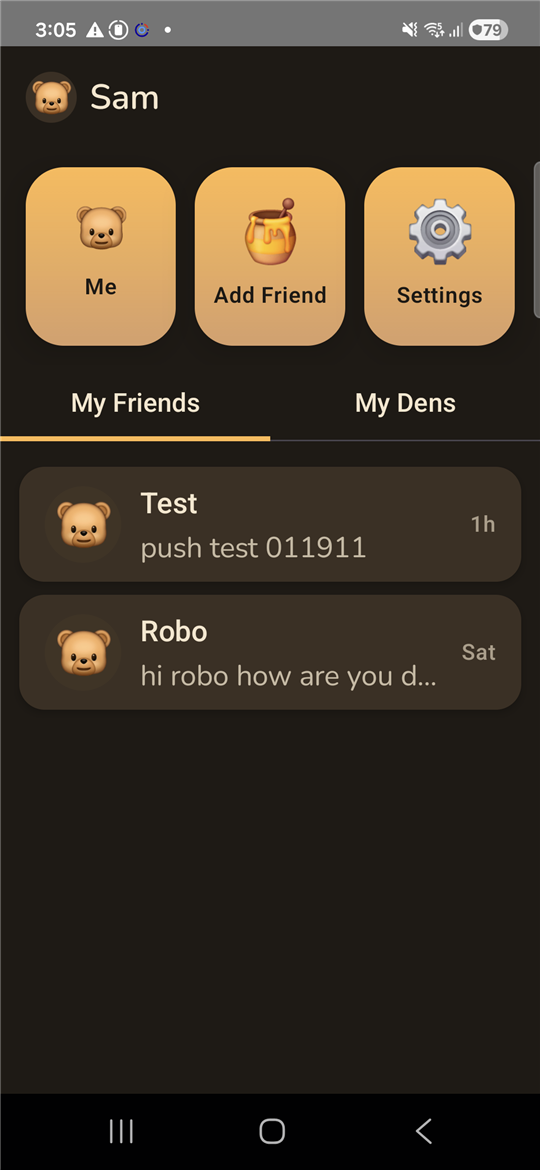
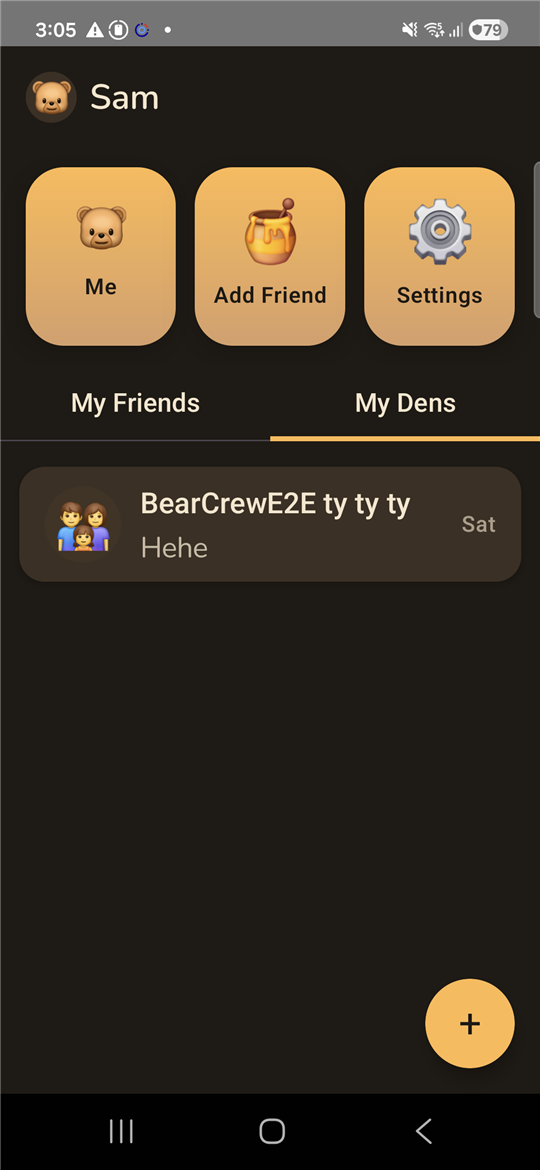
- Home is where everything lives. Your name is at the top.
- Tap Me to see and edit your bear. Tap Add Friend to share or scan a honey-pot. Tap Settings to change preferences.
- Below the tiles, switch between My Friends and My Dens with the tabs.
🍯
3
Add a friend
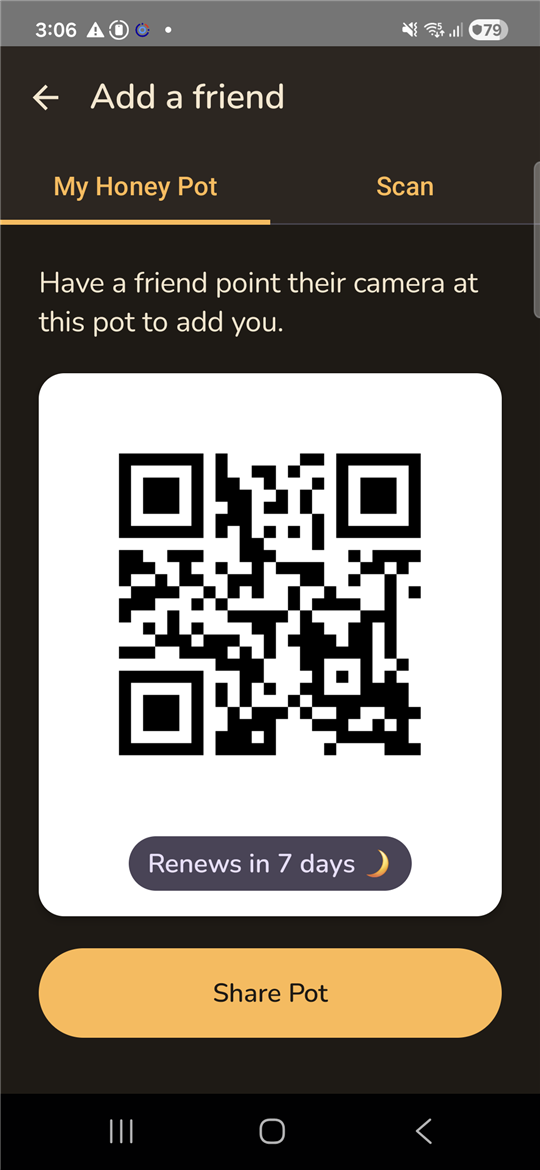
- Tap Add Friend. The first tab, My Honey Pot, shows a QR your friend can scan with their camera.
- Or tap Share Pot to send the link any way you like (text, email, paste it anywhere).
- If a friend sent you their pot, switch to the Scan tab and point your camera at theirs.
- The pot renews after 7 days so old links can't be reused forever.
💬
4
Send your first message
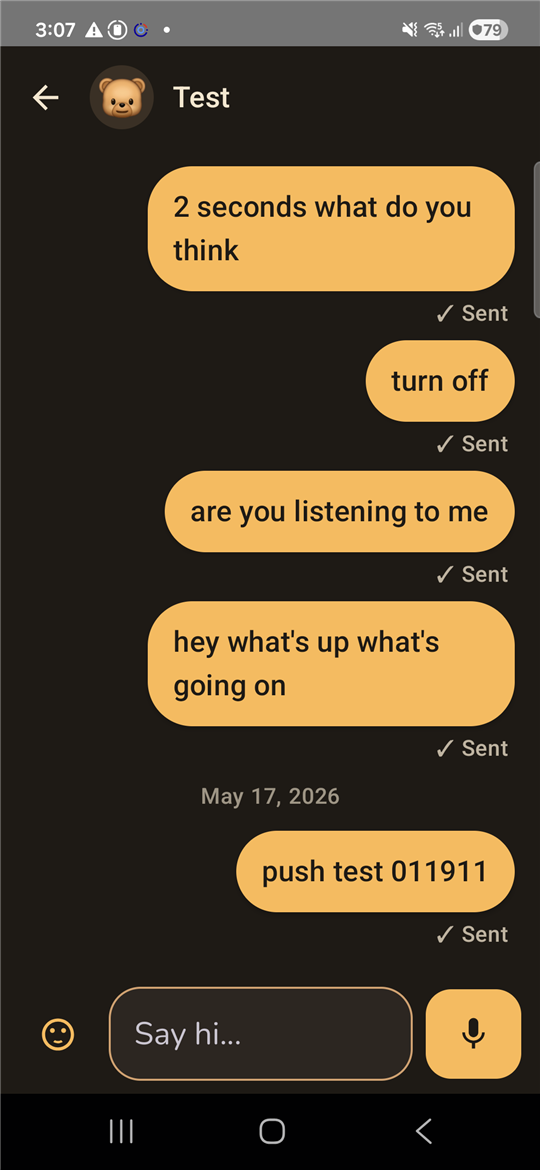
- Tap a friend in My Friends to open their chat.
- Type in the box and tap the send arrow, or hold the mic to send a voice message. Voice messages get turned into text automatically.
- Tap any message to hear it read out loud. Great for early readers.
- A check mark means Sent. Two check marks means Read.
👥
5
Start a den (group chat)
- On Home, switch to My Dens. Tap Start a den.
- Name your den, pick an animal, and choose which friends to invite.
- Inside the den, tap the people icon to add or remove members, or rename the den.
- Only the bear who created the den can rename or close it.
🛡️
6
Keep things safe
- Long-press any message to block or report the sender. We review reports and take action.
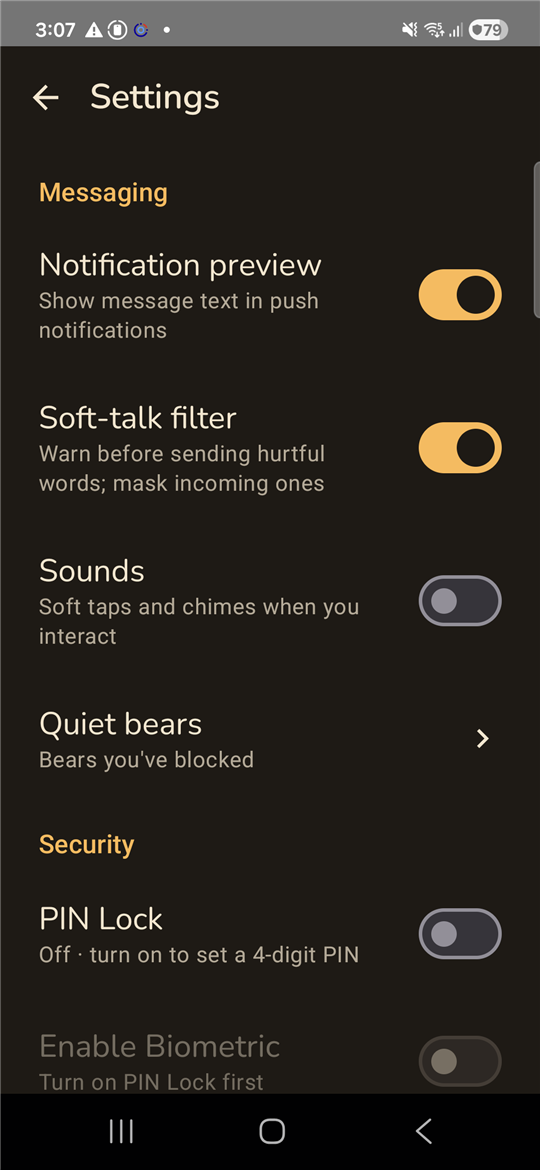
- The Soft-talk filter (on by default) warns before you send hurtful words and masks incoming ones.
- Messages auto-delete after 30 days. Nothing sticks around forever.
- In Settings, turn on PIN Lock so only the right bear can open the app.
🐾
7
Your profile
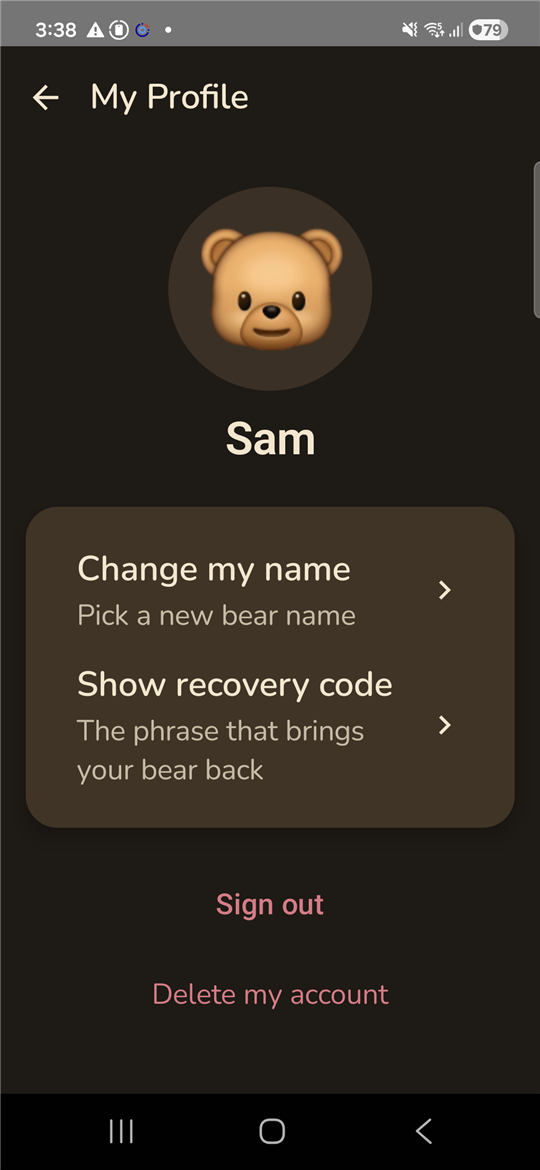
- Tap Me on Home to open My Profile.
- Change my name lets you pick a new bear name any time.
- Show recovery code shows your magic code again. Tap Copy to paste it somewhere safe.
- Sign out clears this device. You can sign back in with your magic code.
- Delete my account removes your bear, your messages, your friends list, and any dens you created. It cannot be undone, and your recovery code stops working.